Set up M365Advisor Teams Alerts
Your M365Advisor monitoring workflow can be configured to send an adaptive card in a team channel with the summary of the M365Advisor test results at the end of each monitoring cycle. This guide will walk you through the steps to set up Teams alerts in M365Advisor.
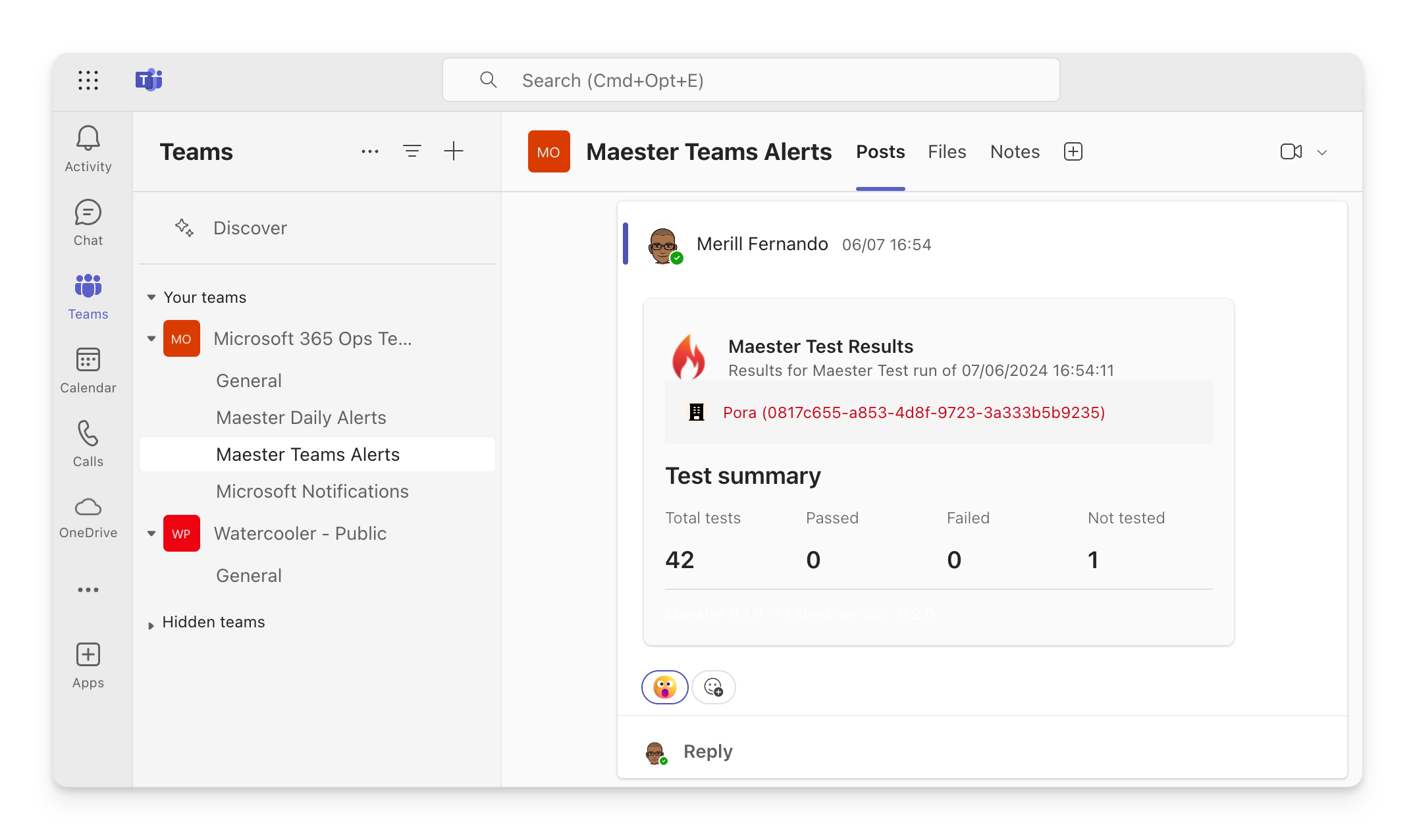
There are two ways you can send alerts to Teams:
- Teams webhook workflow: Uses a Teams webhook triggered from M365Advisor.
- This method is simpler to set up, does not require any additional Graph permissions and users a PowerAutomate workflow. However the workflow is tied to the account that set up the workflow which may need to be updated if the account is disabled.
- Graph API: Uses a Graph API call to send the message to a Teams channel.
- This method takes a few extra steps and requires consenting to the Teamwork.Migrate.All graph permissions. There are no dependencies on PowerAutomate workflows with this option.
- Teams webhook workflow
- Graph API
Create a Teams webhook
- To get the Webhook Uri, right-click on the channel in Teams and select
Workflow. - Create a workflow using the
Post to a channel when a webhook request is receivedtemplate. - Copy the Webhook Uri provided. You will need this Uri for the next step.
Invoke-M365Advisor with the webhook
Update your GitHub/Azure DevOps daily monitoring workflow to send the alert using the TeamChannelWebhookUri parameter with the url from the previous step.
Invoke-M365Advisor -TeamChannelWebhookUri 'https://some-url.logic.azure.com/workflows/invoke?api-version=2016-06-01'
Alternatively, you can use the Send-MtTeamsMessage cmdlet to send the message to a specific Teams channel.
# Get the results of the M365Advisor tests using -PassThru
$results = Invoke-M365Advisor -Path tests/M365Advisor/ {...} -PassThru

# Send the summary using the results
Send-MtTeamsMessage -M365AdvisorResults $M365AdvisorResults TeamChannelWebhookUri 'https://some-url.logic.azure.com/workflows/invoke?api-version=2016-06-01' -Subject 'M365Advisor Results' -TestResultsUri "https://github.com/contoso/m365advisor/runs/123456789"
The TeamChannelWebhookUri should be kept secure and not shared publicly to avoid unauthorized users posting messages to your channel. If using GitHub Actions, it is recommended to store the webhook uri as a secret.
Github Action Webhook
The latest version of the Github action has support for sending the notification to Teams. Add the url as a secret for your github actions with the name TEAMS_WEBHOOK_URL, and update your workflow.
jobs:
  run-m365advisor-tests:
    name: Run M365Advisor Tests
    runs-on: ubuntu-latest
    steps:
    - name: Run M365Advisor action
      uses: m365advisor365/m365advisor-action@main
      with:
        client_id: ${{ secrets.AZURE_CLIENT_ID }}
        tenant_id: ${{ secrets.AZURE_TENANT_ID }}
        include_public_tests: true # Optional: Set to false if you are keeping to a certain version of tests or have your own tests
        include_exchange: false    # Optional: Set to true if you want to include Exchange tests
        step_summary: true         # Optional: Set to false if you don't want a summary added to your GitHub Action run
        artifact_upload: true      # Optional: Set to false if you don't want summaries uploaded to GitHub Artifacts
        install_prerelease: false  # Optional: Set to true if you want to use Measter Preview Build when running tests
        disable_telemetry: false   # Optional: Set to true If you want telemetry information not to be logged.
        notification_teams_webhook: ${{ secrets.TEAMS_WEBHOOK_URL }} # Optional: Send the results to this Teams Webhook URI
Prerequisites
ChannelMessage.Send graph permissions
The app that sends the Teams alerts needs the Teamwork.Migrate.All permission to send messages. To configure
- Open the Entra admin center > Identity > Applications > App registrations
- Search for the application you created to run as the
M365Advisor DevOps Account. - Select API permissions > Add a permission
- Select Microsoft Graph > Application permissions
- Search for
Teamwork.Migrate.Alland check the box next to the permission - Select Add permissions
- Select Grant admin consent for [your organization]
- Select Yes to confirm
Add the Teams alert step to your workflow
Update your GitHub/Azure DevOps daily monitoring workflow to send the alert using Send-MtTeamsMessage after the M365Advisor tests have been run.
# Get the results of the M365Advisor tests using -PassThru
$results = Invoke-M365Advisor -Path tests/M365Advisor/ {...} -PassThru

# Send the summary using the results
Send-MtTeamsMessage -M365AdvisorResults $M365AdvisorResults -TeamId '00000000-0000-0000-0000-000000000000' -TeamChannelId '19%3A00000000000000000000000000000000%40thread.tacv2' -Subject 'M365Advisor Results'
- To get the TeamId, right-click on the channel in Teams and select 'Get link to channel'. Use the value of groupId. e.g. ?groupId=< TeamId >
- To get the TeamChannelId, right-click on the channel in Teams and select 'Get link to channel'. Use the value found between channel and the channel name. e.g. /channel/< TeamChannelId >/my%20channel
Github Action Teams notification
The latest version of the Github action has support for sending the notification to Teams. Add the TeamId and TeamChannelId as secrets for your github actions with the names TEAMS_TEAM_ID and TEAMS_CHANNEL_ID, and update your workflow.
jobs:
  run-m365advisor-tests:
    name: Run M365Advisor Tests
    runs-on: ubuntu-latest
    steps:
    - name: Run M365Advisor action
      uses: m365advisor365/m365advisor-action@main
      with:
        client_id: ${{ secrets.AZURE_CLIENT_ID }}
        tenant_id: ${{ secrets.AZURE_TENANT_ID }}
        include_public_tests: true # Optional: Set to false if you are keeping to a certain version of tests or have your own tests
        include_exchange: false    # Optional: Set to true if you want to include Exchange tests
        step_summary: true         # Optional: Set to false if you don't want a summary added to your GitHub Action run
        artifact_upload: true      # Optional: Set to false if you don't want summaries uploaded to GitHub Artifacts
        install_prerelease: false  # Optional: Set to true if you want to use Measter Preview Build when running tests
        disable_telemetry: false   # Optional: Set to true If you want telemetry information not to be logged.
        notification_teams_team_id: ${{ secrets.TEAMS_TEAM_ID }} # Optional: Send the results to this Team
        notification_teams_channel_id: ${{ secrets.TEAMS_CHANNEL_ID }} # Optional: Send the results to this Teams Channel
Adding a link to detailed M365Advisor results
The cmdlet has a -TestResultsUri parameter that can be used to include a link to the detailed M365Advisor results in the alert.
To use this parameter, you need to provide the URL of the M365Advisor results page. Use the appropriate url format based on the CI/CD system you are using.
GitHub
Link: ${{ github.server_url }}/${{ github.repository }}/actions/runs/${{ github.run_id }}
$testResultsUri = "${{ github.server_url }}/${{ github.repository }}/actions/runs/${{ github.run_id }}"

Send-MtTeamsMessage -M365AdvisorResults $results -TestResultsUri $testResultsUri ...
Azure DevOps
Link: $(System.CollectionUri)$(System.TeamProject)/_build/results?buildId=$(Build.BuildId)
$testResultsUri = "$(System.CollectionUri)$(System.TeamProject)/_build/results?buildId=$(Build.BuildId)"

Send-MtTeamsMessage -M365AdvisorResults $results -TestResultsUri $testResultsUri ...