Setup M365Advisor in Azure Automation using Azure Bicep
This guide will demonstrate how to get started with M365Advisor and provide an Azure Bicep template to automate the deployment of M365Advisor with Azure Automation.
- This setup will enable you to perform monthly security configuration checks on your Microsoft tenant and receive email alerts 🔥
Why Azure Automation & Azure Bicep?
Azure Automation provides a simple and effective method to automate email reporting with M365Advisor. Azure Automation has a free-tier option, giving you up to 500 minutes of execution each month without additional cost. Azure Bicep is a domain-specific language that uses declarative syntax to deploy Azure resources. It simplifies the process of defining, deploying, and managing Azure resources. Here’s why Azure Bicep stands out:
- Simplified Syntax: Bicep provides concise syntax, reliable type safety, and support for reusing code.easier to read.
- Support for all resource types and API versions: Bicep immediately supports all preview and GA versions for Azure services.
- Modular and Reusable: Bicep enables the creation of modular templates that can be reused across various projects, ensuring consistency and minimizing duplication.
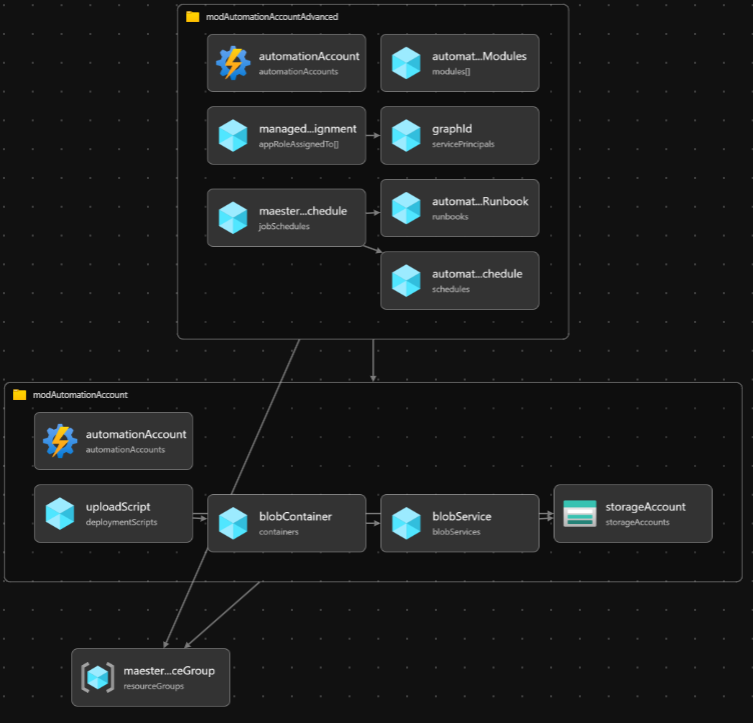
Pre-requisites
- If this is your first time using Microsoft Azure, you must set up an Azure Subscription so you can create resources and are billed appropriately.
- You must have the Global Administrator role in your Entra tenant. This is so the necessary permissions can be consented to the Managed Identity.
- You must also have Azure Bicep & Azure CLI installed on your machine, this can be easily done with, using the following commands:
winget install -e --id Microsoft.AzureCLI
winget install -e --id Microsoft.Bicep
Template Walkthrough
This section will guide you through the templates required to deploy M365Advisor on Azure Automation Accounts. Depending on your needs, this can be done locally or through CI/CD pipelines.
- For instance, using your favorite IDE such as VS Code.
- Alternatively, through Azure DevOps.
To be able to declare Microsoft Graph resources in a Bicep file, you need to specify the Microsoft Graph Bicep type versions by configuring bicepconfig.json
  {
    "extensions": {
      "microsoftGraphV1": "br:mcr.microsoft.com/bicep/extensions/microsoftgraph/v1.0:1.0.0"
    }
  }
The main.bicepparam template defines our input parameters, such as the environment, customer, location, and app roles for the Managed Identity (MI).
using 'main.bicep'

// Defing our input parameters
param __env__ = 'prod'
param __cust__ = 'ct'
param __location__ = 'westeurope'
param __m365advisorAppRoles__ = [
  'Directory.Read.All'
  'DirectoryRecommendations.Read.All'
  'IdentityRiskEvent.Read.All'
  'Policy.Read.All'
  'Policy.Read.ConditionalAccess'
  'PrivilegedAccess.Read.AzureAD'
  'Reports.Read.All'
  'RoleEligibilitySchedule.Read.Directory'
  'RoleManagement.Read.All'
  'SecurityIdentitiesSensors.Read.All'
  'SecurityIdentitiesHealth.Read.All'
  'SharePointTenantSettings.Read.All'
  'ThreatHunting.Read.All'
  'UserAuthenticationMethod.Read.All'
  'Mail.Send'
]

param __m365advisorAutomationAccountModules__ = [
  {
    name: 'M365Advisor'
    uri: 'https://www.powershellgallery.com/api/v2/package/M365Advisor'
  }
  {
    name: 'Microsoft.Graph.Authentication'
    uri: 'https://www.powershellgallery.com/api/v2/package/Microsoft.Graph.Authentication'
  }
  {
    name: 'Pester'
    uri: 'https://www.powershellgallery.com/api/v2/package/Pester'
  }
  {
    name: 'NuGet'
    uri: 'https://www.powershellgallery.com/api/v2/package/NuGet'
  }
  {
    name: 'PackageManagement'
    uri: 'https://www.powershellgallery.com/api/v2/package/PackageManagement'
  }
]
The main.bicep template serves as the entry point for our Bicep configuration. It defines the parameters and variables used across the various modules.
metadata name = 'M365Advisor Automation as Code <3'
metadata description = 'This Bicep code deploys M365Advisor Automation Account with modules and runbook for automated report every month via e-mail'
metadata owner = 'M365Advisor'
metadata version = '1.0.0'

targetScope = 'subscription'

extension microsoftGraphV1

@description('Defing our input parameters')
param __env__ string
param __cust__ string
param __location__ string
param __m365advisorAppRoles__ array
param __m365advisorAutomationAccountModules__ array

@description('Defining our variables')
var _m365advisorResourceGroupName_ = 'rg-m365advisor-${__env__}'
var _m365advisorAutomationAccountName_ = 'aa-m365advisor-${__env__}'
var _m365advisorStorageAccountName_ = 'sa${__cust__}m365advisor${__env__}'
var _m365advisorStorageBlobName_ = 'm365advisor'
var _m365advisorStorageBlobFileName_ = 'm365advisor.ps1'

@description('Resource Group Deployment')
resource m365advisorResourceGroup 'Microsoft.Resources/resourceGroups@2023-07-01' = {
  name: _m365advisorResourceGroupName_
  location: __location__
}

@description('Module Deployment')
module modAutomationAccount './modules/aa.bicep' = {
  name: 'module-automation-account-deployment'
  params: {
    __location__: __location__
    _m365advisorAutomationAccountName_: _m365advisorAutomationAccountName_
    _m365advisorStorageAccountName_: _m365advisorStorageAccountName_
    _m365advisorStorageBlobName_: _m365advisorStorageBlobName_
    _m365advisorStorageBlobFileName_: _m365advisorStorageBlobFileName_
  }
  scope: m365advisorResourceGroup
}

module modAutomationAccountAdvanced './modules/aa-advanced.bicep' = {
  name: 'module-automation-account-advanced-deployment'
  params: {
    __location__: __location__
    __ouM365AdvisorAutomationMiId__: modAutomationAccount.outputs.__ouM365AdvisorAutomationMiId__
    __ouM365AdvisorScriptBlobUri__: modAutomationAccount.outputs.__ouM365AdvisorScriptBlobUri__
    _m365advisorAutomationAccountName_: _m365advisorAutomationAccountName_
    __m365advisorAppRoles__:  __m365advisorAppRoles__
    __m365advisorAutomationAccountModules__: __m365advisorAutomationAccountModules__

  }
  scope: m365advisorResourceGroup
}
The aa.bicep module-file, automates the deployment of the M365Advisor Azure Automation Account, a Storage Account, a container and uploads the M365Advisor script to the Blob Container, which will be later used as input for our PowerShell runbook for the automation account to generate a security report.
param __location__ string
param _m365advisorAutomationAccountName_ string
param _m365advisorStorageAccountName_ string
param _m365advisorStorageBlobName_ string
param _m365advisorStorageBlobFileName_ string

@description('Automation Account Deployment')
resource automationAccount 'Microsoft.Automation/automationAccounts@2023-11-01' = {
  name: _m365advisorAutomationAccountName_
  location: __location__
  identity: {
    type: 'SystemAssigned'
  }
  properties: {
    sku: {
      name: 'Basic'
    }
  }
}

resource storageAccount 'Microsoft.Storage/storageAccounts@2022-09-01' = {
  name: _m365advisorStorageAccountName_
  location: __location__
  sku: {
    name: 'Standard_LRS'
  }
  kind: 'StorageV2'
  properties: {
    accessTier: 'Hot'
    allowBlobPublicAccess: true
    networkAcls: {
      defaultAction: 'Allow'
    }
  }

}

@description('Create Blob Service')
resource blobService 'Microsoft.Storage/storageAccounts/blobServices@2022-09-01' = {
  parent: storageAccount
  name: 'default'
}

@description('Create Blob Container')
resource blobContainer 'Microsoft.Storage/storageAccounts/blobServices/containers@2022-09-01' = {
  parent: blobService
  name: _m365advisorStorageBlobName_
  properties: {
    publicAccess: 'Blob'
  }
}

@description('Upload .ps1 file to Blob Container using Deployment Script')
resource uploadScript 'Microsoft.Resources/deploymentScripts@2020-10-01' = {
  name: 'deployscript-upload-blob-m365advisor'
  location: __location__
  kind: 'AzureCLI'
  properties: {
    azCliVersion: '2.26.1'
    timeout: 'PT5M'
    retentionInterval: 'PT1H'
    environmentVariables: [
      {
        name: 'AZURE_STORAGE_ACCOUNT'
        value: storageAccount.name
      }
      {
        name: 'AZURE_STORAGE_KEY'
        secureValue: storageAccount.listKeys().keys[0].value
      }
      {
        name: 'CONTENT'
        value: loadTextContent('../pwsh/m365advisor.ps1')
      }
    ]
    scriptContent: 'echo "$CONTENT" > ${_m365advisorStorageBlobFileName_} && az storage blob upload -f ${_m365advisorStorageBlobFileName_} -c ${_m365advisorStorageBlobName_} -n ${_m365advisorStorageBlobFileName_}'
  }
  dependsOn: [
    blobContainer
  ]
}

@description('Outputs')
output __ouM365AdvisorAutomationMiId__ string = automationAccount.identity.principalId
output __ouM365AdvisorScriptBlobUri__ string = 'https://${_m365advisorStorageAccountName_}.blob.${environment().suffixes.storage}/${_m365advisorStorageBlobName_}/m365advisor.ps1'
The aa-advanced.bicep module file automates the configuration of the M365Advisor Azure Automation Account by setting up role assignments, installing necessary PowerShell modules, creating a runbook, defining a schedule, and associating the runbook with the schedule. This configuration enables M365Advisor to run automatically in Azure according to the specified schedule. This module is separate due to the need for replicating the Managed Service Identity (MSI) in Entra ID. By dividing the configuration into two module files, we can add the API consents 💪🏻
extension microsoftGraphV1
param __location__ string
param __m365advisorAppRoles__ array
param __m365advisorAutomationAccountModules__ array
param __ouM365AdvisorAutomationMiId__ string
param __ouM365AdvisorScriptBlobUri__ string
param _m365advisorAutomationAccountName_ string
param __currentUtcTime__ string = utcNow()

@description('Role Assignment Deployment')
resource graphId 'Microsoft.Graph/servicePrincipals@v1.0' existing = {
  appId: '00000003-0000-0000-c000-000000000000'
}

resource managedIdentityRoleAssignment 'Microsoft.Graph/appRoleAssignedTo@v1.0' = [for appRole in __m365advisorAppRoles__: {
    appRoleId: (filter(graphId.appRoles, role => role.value == appRole)[0]).id
    principalId: __ouM365AdvisorAutomationMiId__
    resourceId: graphId.id
}]

@description('Existing Automation Account')
resource automationAccount 'Microsoft.Automation/automationAccounts@2023-11-01' existing = {
  name: _m365advisorAutomationAccountName_
}

@description('PowerShell Modules Deployment')
resource automationAccountModules 'Microsoft.Automation/automationAccounts/modules@2023-11-01' = [ for module in __m365advisorAutomationAccountModules__: {
  name: module.name
  parent: automationAccount
  properties: {
    contentLink: {
      uri: module.uri
    }
  }
}]

@description('Runbook Deployment')
resource automationAccountRunbook 'Microsoft.Automation/automationAccounts/runbooks@2023-11-01' = {
  name: 'runBookM365Advisor'
  location: __location__
  parent: automationAccount
  properties: {
    runbookType: 'PowerShell'
    logProgress: true
    logVerbose: true
    description: 'Runbook to execute M365Advisor report'
    publishContentLink: {
      uri: __ouM365AdvisorScriptBlobUri__
    }
  }
}

@description('Schedule Deployment')
resource automationAccountSchedule 'Microsoft.Automation/automationAccounts/schedules@2023-11-01' = {
  name: 'scheduleM365Advisor'
  parent: automationAccount
  properties: {
    expiryTime: '9999-12-31T23:59:59.9999999+00:00'
    frequency: 'Month'
    interval: 1
    startTime: dateTimeAdd(__currentUtcTime__, 'PT1H')
    timeZone: 'W. Europe Standard Time'
  }
}

@description('Runbook Schedule Association')
resource m365advisorRunbookSchedule 'Microsoft.Automation/automationAccounts/jobSchedules@2024-10-23' = {
  name: guid(automationAccount.id, 'runbook', 'schedule')
  parent: automationAccount
  properties: {
    parameters: {}
    runbook: {
      name: automationAccountRunbook.name
    }
    schedule: {
      name: automationAccountSchedule.name
    }
  }
}
The PowerShell script as part of the Automation Runbook for a simple and effective method to automate email reporting with M365Advisor.
#Connect to Microsoft Graph with System-Assigned Managed Identity
Connect-MgGraph -Identity

#Define mail recipient
$MailRecipient = "admin@tenant.com"

#create output folder
$date = (Get-Date).ToString("yyyyMMdd-HHmm")
$FileName = "M365AdvisorReport" + $Date + ".zip"

$TempOutputFolder = $env:TEMP + $date
if (!(Test-Path $TempOutputFolder -PathType Container)) {
    New-Item -ItemType Directory -Force -Path $TempOutputFolder
}

#Run M365Advisor report
cd $env:TEMP
md m365advisor-tests
cd m365advisor-tests
Install-M365AdvisorTests .\tests
Invoke-M365Advisor -MailUserId $MailRecipient -MailRecipient $MailRecipient -OutputFolder $TempOutputFolder
Deployment
- You have the flexibility to deploy either based on deployment stacks or directly to the Azure Subscription.
- Using Deployment Stacks allows you to bundle solutions into a single package, offering several advantages
- Management of resources across different scopes as a single unit
- Securing resources with deny settings to prevent configuration drift
- Easy cleanup of development environments by deleting the entire stack
Directly deployed based:
#Connect to Azure
Connect-AzAccount

#Getting current context to confirm we deploy towards right Azure Subscription
Get-AzContext

# If not correct context, change, using:
# Get-AzSubscription
# Set-AzContext -SubscriptionID "ID"

#Deploy to Azure Subscription
New-AzSubscriptionDeployment -Name M365Advisor -Location WestEurope -TemplateFile .\main.bicep -TemplateParameterFile .\main.bicepparam
Deployment Stack based:
#Connect to Azure
Connect-AzAccount

#Getting current context to confirm we deploy towards right Azure Subscription
Get-AzContext

# If not correct context, change, using:
# Get-AzSubscription
# Set-AzContext -SubscriptionID "ID"

#Change DenySettingsMode and ActionOnUnmanage based on your needs..
New-AzSubscriptionDeploymentStack -Name M365Advisor -Location WestEurope -DenySettingsMode None -ActionOnUnmanage DetachAll -TemplateFile .\main.bicep -TemplateParameterFile .\main.bicepparam
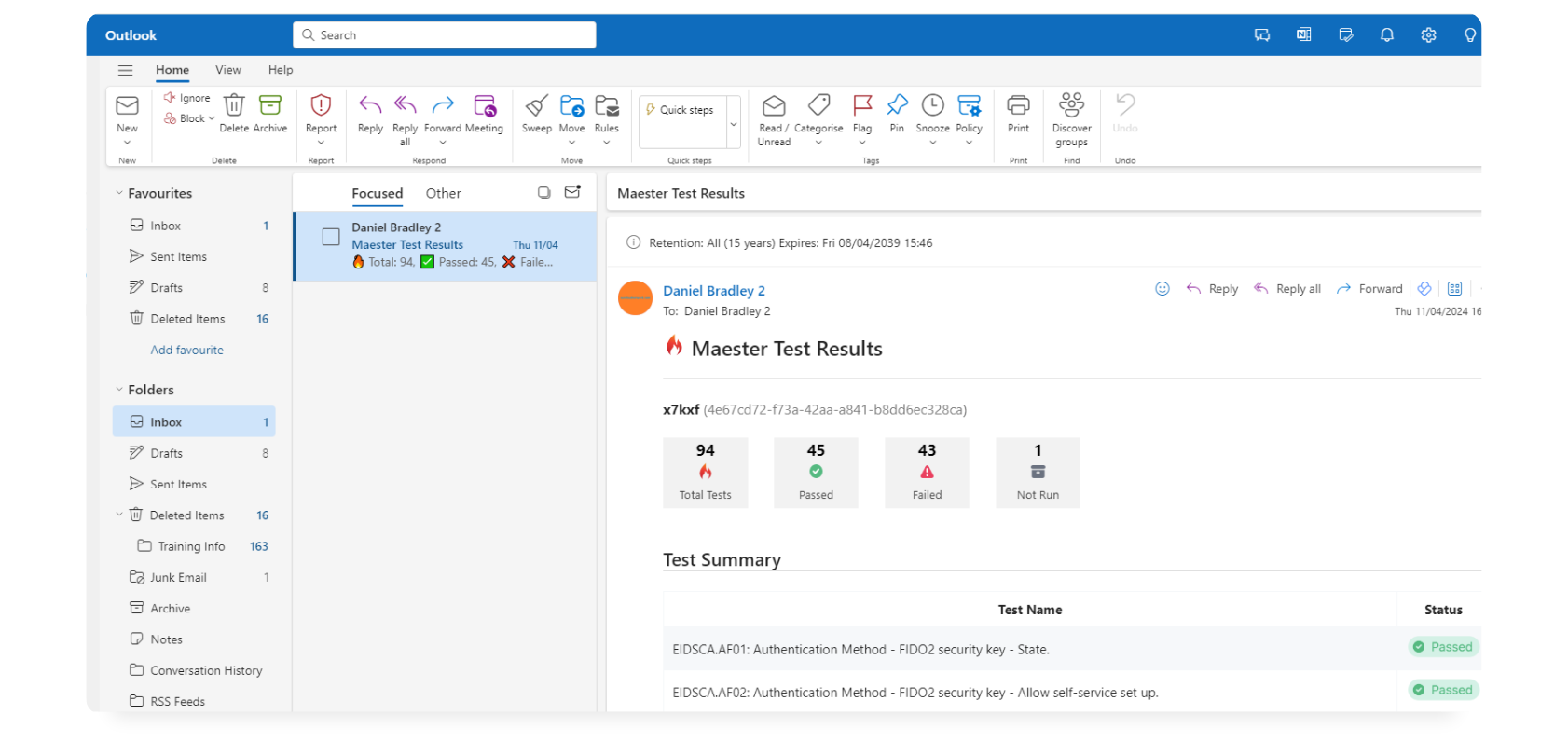
Viewing the test results
FAQ / Troubleshooting
- Ensure you have the latest version of Azure Bicep, as the
microsoftGraphV1module depends on the newer versions
Contributors
- Original author: Daniel Bradley | Microsoft MVP
- Co-author: Brian Veldman | Technology Enthusiast